You may be Wasting PPC Ad Spend by Targeting the Wrong Countries and Regions


Adding a default location to target may not be enough to stop your Google Ads from appearing in other countries or regions.
Why are my Google ads still showing in other countries even with “Locations to Target” set to a specific country?
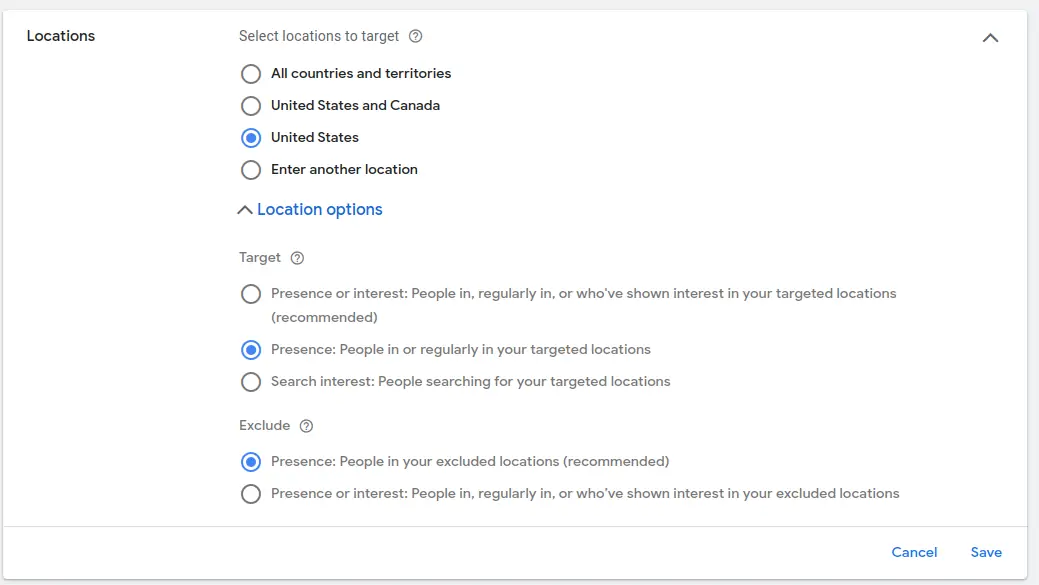
By default, the “Locations to target” setting is configured to show ads where a user is in the target location or has shown interest in the target location. That has shown interest option means that you may be targeting users outside of your preferred country or geographic area.
To change this behavior, you’ll need to:
- Open the the Google Ads console (https://ads.google.com)
- Browse to Settings for your campaign
- Click “Locations”
- Click “Location Options”
- Change “Target” to “Presence” instead of “Presence or interest”, as shown below:
How to Exclude a Country in Google Ads
You may want to go a step further and specifically exclude countries you don’t want your ads to show in. You can do this by following the steps below.
- Open the the Google Ads console (https://ads.google.com)
- Expand “Locations” in the left sidebar
- Click “Excluded”
- Click the blue “Edit” icon that appears below the map, near the left sidebar
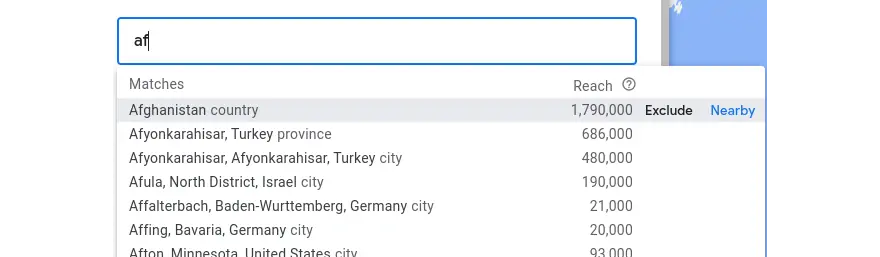
- Type the name of the country you want to exclude
- Click the word “Exclude” next to the name of the country:
How to Batch Exclude a List of Countries in Google Ads
To exclude a list of locations or countries in Google Ads so that your ads don’t show in those countries, you’ll need to follow these steps:
- Download our Excel Template for Google Ads Locations
- Add your Customer ID and Campaign ID to each row (see below to find out how to get your Customer ID and Campaign ID)
- Remove any countries from the template that you do not want to exclude
- By default, this template excludes everywhere except the United States. If you’d like to exclude the U.S., add a row with “United States” as the location name
- Open the the Google Ads console (https://ads.google.com)
- Expand “Locations” in the left sidebar
- Click “Excluded”
- Click the “More” Icon and select “Upload”

- Click “Select Source”
- Choose “Upload a File”
- Click “Select a file from your computer”
- Select the file you created from our template
- Click “Apply”
Excel Template for Excluding Locations from Google Ads
At the link below, you’ll find an Excel Template for excluding countries from Google Ads. This template excludes all Non-US countries, but you can delete the rows you do not want to exclude
Download the Excel Template for Excluding Google Ads Locations
Where to find your Google Ads Customer ID
Your Google Ads Customer ID can be found in the top-right of the main Google ads console (ads.google.com) as shown in the following screenshot:
Where to find your Google Ads Campaign ID
- Browse to “Campaigns” in the left side of your Google Ads console (ads.google.com)
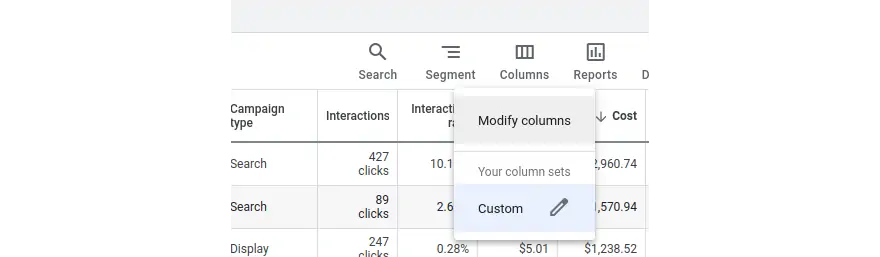
- Under “all campaigns” click “Columns” then “Modify Columns”, as shown below:
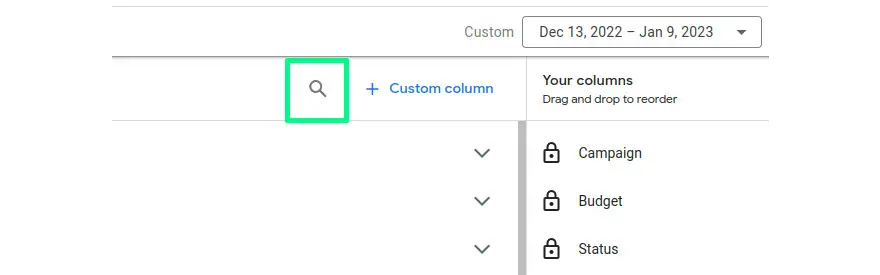
- Click the search Icon as shown below:
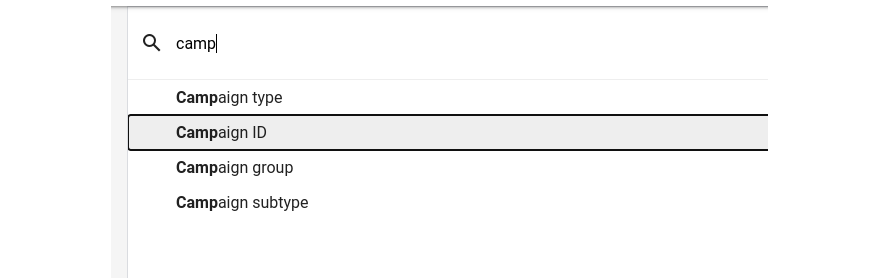
- Search for Campaign ID and click it when it appears in the results:
- “Campaign ID” will now appear next to your list of campaigns. You may need to scroll right to see it.x

Why can’t I exclude North Korea, Crimea, Cuba, Syria, or Iran from my Google Ads?
Due to sanctions imposed on these countries, Google does not allow you to show ads there. However, that also means you can’t specifically exclude them from showing there either – the Ads console simply ignores the following countries in all settings:
- Crimea (21120)
- Cuba (2192)
- So-called Donetsk People’s Republic (DNR) (21113)
- Iran (2364)
- So-called Luhansk People’s Republic (LNR) (21111)
- North Korea (2408)
- Syria (2760)
You can read more at Understanding Google Ads country restrictions
Q&A
Why are my Google ads showing in other countries despite targeting a specific location?
By default, Google Ads
How do I exclude specific countries from my Google Ads campaigns?
To exclude countries in Google Ads, open the Ads console and expand Locations in the left sidebar. Click Excluded, then click the blue Edit icon below the map. Type the name of the country you want to exclude and click Exclude next to that country name. You can also batch exclude multiple countries by uploading an Excel file with your exclusions.
Why can't I exclude certain countries like North Korea or Iran from Google Ads?
Due to international sanctions, Google does not allow ads to show in certain countries including North Korea, Iran, Syria, Cuba, Crimea, and the so-called Donetsk and Luhansk People’s Republics. Because ads cannot run there, you also cannot specifically exclude these locations as the Ads console ignores them in all settings.
Where can I find my Google Ads Customer ID and Campaign ID?
Your Customer ID appears in the top-right corner of the main Google Ads console at ads.google.com. To find your Campaign ID, browse to Campaigns, click Columns then Modify Columns, use the search icon to find Campaign ID, and add it to your view. The Campaign ID will then appear next to your campaigns list.
Eastern Standard delivers strategic digital solutions for complex organizations. Our full-service team combines strategy, design, and development expertise. Contact us about your digital project.